
Most Housecall Pro accounts work fine on day one and go wrong quietly over the following year. Jobs get scheduled, invoices go out, payments land. Then somebody pulls a report before tax season, and the numbers describe a business nobody at the company recognizes.
The cause is almost always a handful of decisions made during setup, usually in a week when the phone would not stop ringing. The platform records exactly what it was configured to record. If nobody agreed on how to label a job, which QuickBooks income account a service belongs to, or whether a twelve-building apartment complex is one customer or twelve, the account keeps storing it that way until somebody finally looks.
Below are the five setup mistakes that show up most often in HVAC, plumbing, electrical, cleaning, garage door and pest control accounts. For each one, what it looks like from the outside, why it is expensive later, and what it takes to put right.
1. Customer Import and Data Mapping Errors
The import is the cheapest hour of the setup to get right and the most expensive one to redo. Every customer record, every piece of job history and every billing relationship that comes across at signup becomes the foundation of your reporting, your marketing lists and your QuickBooks sync. Bring it over wrong and nothing downstream can be trusted, because the errors are spread across thousands of rows rather than sitting in one place where somebody would notice them.
One contractor described their handover this way in a review posted on Software Finder.
the transfer from our previous CRM was basically useless
– Drywall M., September 2022
A wrong CRM migration corrupted records and threw off the numbers in QuickBooks. These errors often go unnoticed until months later, when reports no longer reflect the business accurately.
Invalid tag and field mapping
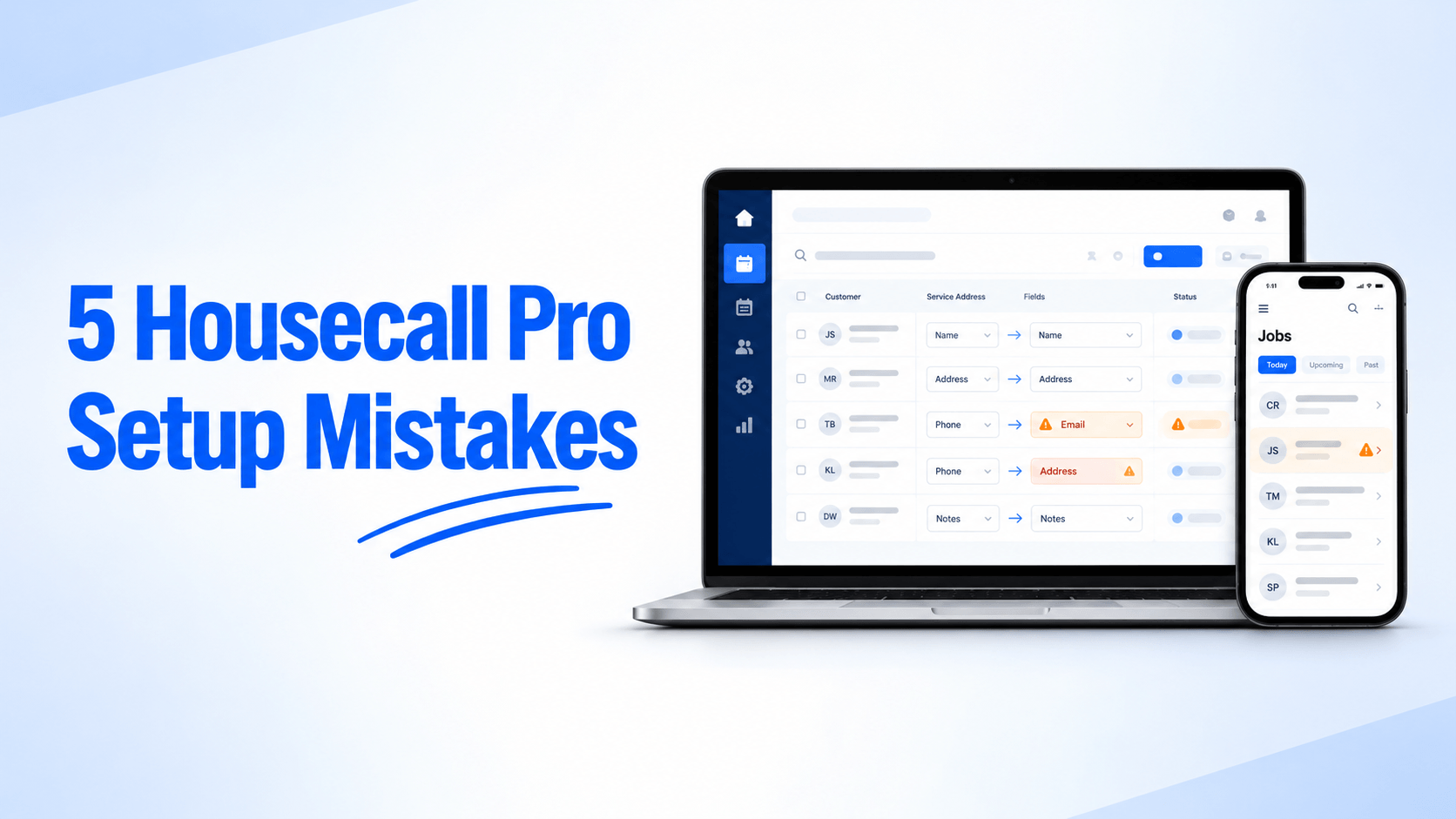
CSV and Excel imports fail on column alignment. A spreadsheet column that does not match the expected field, or a missing customer identifier, causes rows to flag as invalid or to map into the wrong place. The dangerous version is not the import that fails loudly. It is the one that succeeds with phone numbers sitting in the address field or customer tags landing on the wrong records, because nobody audits a job that reported success.
Parent and child billing relationships
If you never set how one customer bills to another account, subaccounts and multi-address properties come apart. A property management company with nine sites looks like nine unconnected customers, so lifetime value, repeat rate and receivables for that relationship are split nine ways from the first day.
Housecall Pro flags the duplicate risk during the QuickBooks Desktop import and offers this reassurance.
The fix.
- Clean the source system before you import, not after. Merge duplicates and standardize customer naming while the list is still in the old system or the spreadsheet.
- Import in one batch rather than several, then check the counts in Housecall Pro against the counts in the source.
- Set parent and child relationships for every multi-site customer before the first job is booked against them.
- An afternoon here saves a reconstruction project later.
2. QuickBooks Sync Drifts and Duplicates
The QuickBooks sync rarely breaks outright. It drifts. Invoices keep moving, the icon stays green, and the two systems slowly stop describing the same business. By the time the drift is obvious, it is usually a bookkeeper finding it during a month-end that will not close.
you have to manually push the invoices to QBO
– Cathleen D., August 2026
A bookkeeper, one to two years in, having to push invoices across by hand. When the sync quietly stops carrying everything, the person who finds out is the one closing the books at month end.
Duplicate customer records
A technician books Bob Smith on site while the office already has Robert Smith in QuickBooks Online. The sync has no way to know they are the same person, so it creates a second profile. Revenue for that customer now sits in two places, aging reports are wrong, and any marketing list built from the customer file counts them twice.
Housecall Pro documents the symptoms in its sync alerts, which appear under names such as display name conflict, duplicate name exists and name already taken. Those alerts are the system telling you a naming decision was never made.
Item and account mapping
Every service and material in your price book needs to point at a real QuickBooks income account. When that mapping is wrong or missing, revenue lands in the wrong ledger or sits in undeposited funds waiting for somebody to notice. This is the one that quietly ruins a profit and loss at the category level, because every invoice looks correct on its own and only the totals are wrong.
Invoice number collisions
The two systems number invoices differently. Housecall Pro bases the next number on the highest number that already exists. QuickBooks tracks from the last sequence entered. Left unexamined, the two drift apart and start colliding, which produces sync errors that look technical but come from a numbering convention nobody agreed.
The fix.
- Merge duplicates and check the chart of accounts in QuickBooks before connecting.
- Pick one place where new customers get created, and train the field to search first.
- Map every service and material to a named income account.
- Agree an invoice numbering convention at connection.
- Check the sync alerts page weekly.
3. Commercial Accounts Set Up Like Residential Ones
A residential customer is one person at one address who pays for their own work. A commercial account is almost never that. An HOA, an apartment complex, a hotel group, or a property manager has one billing contact, several site contacts, many addresses, and a payment cycle that runs on their terms rather than yours. Forcing that into a single customer profile breaks the parts you will need later, including multi-contact tracking, per-site job history, and anything that depends on knowing which building the work happened in.
An owner at a construction company described the structural version of this on Capterra.
they are separate from each other when searching or invoicing
– Esther B., June 2019
A commercial customer forced into a residential profile breaks apart when you search or invoice. The same review also flags a missing purchase order field and a two line job location.
The real cost is the questions you can no longer answer. Which building eats the most hours, which site is profitable, what the relationship is worth at renewal.
The fix. Create a separate customer record for each commercial address, then link them with tags, custom fields or notes so the relationship stays visible and reporting can be rolled up. Decide which contact is the billing contact and which are site contacts. Put the purchase order number somewhere consistent and agree where it lives before the first commercial invoice goes out. This structure is close to impossible to retrofit once a year of jobs sits inside one flattened profile, which is why it belongs in the setup week.
4. Price Book and Catalog Setup Issues
An unfinished price book is the most common thing we find in an account, and it is the one that costs money every single day rather than once a year. When the catalog is incomplete, technicians type line items from memory in the driveway. Two people quote the same repair at different numbers, flat rate pricing never does its job of protecting margin, and your average ticket figure describes improvisation rather than a pricing strategy.
A finished one changes the arithmetic of the business. One construction company owner put the payoff plainly on Capterra.
creating a price book has increased our profitability
– Joe P., August 2022
A finished price book does not just speed up estimates; it protects margin on every job. The owners who complete it are the ones who feel the difference in what they take home.
Exact industry and category names on import
Bulk price book imports fail on naming. A custom CSV with non-standard industry tags, or with category names that do not match what the importer expects, will not load. People then give up on the import, build thirty items by hand, and the catalog stays at thirty items for two years.
Name length and special characters
Service or material names longer than 191 characters will break the import, and so will hidden special characters that spreadsheets carry across invisibly. Slashes, brackets, and semicolons are the usual offenders. The same characters cause trouble downstream in line items that need to reach QuickBooks, which makes a clean naming convention worth more than it sounds.
The cost field almost everybody skips
This one is not an error message, which is why it survives. Most price books get built with the customer price filled in and the internal cost left empty. The catalog works, estimates go out, and job costing never starts, because there is no cost to subtract. You end up with a year of revenue you can see and margin you cannot. Nobody complains about this, because you cannot miss a number you have never had.
The fix. Build the catalog in passes rather than in one sitting, starting with the twenty or so services that cover most of your calls, and add the rest as they come up. Use the importer’s own column names and category list rather than your spreadsheet’s. Keep names short and strip special characters before uploading. Enter the internal cost beside the customer price on every item, even where it is an estimate, because the first full quarter of costed jobs is the first time margin by job type becomes visible. Then set a review date, since a price book that is never updated for supply cost changes is stale within a season.
5. Settings and Operational Oversights
These are the switches that look optional during setup and turn out to have been collecting nothing for a year. Neither of the two below throws an error. They simply produce no data, which is why they go unnoticed for so long.
Review platform connections left unlinked
Automated review requests only work if the Marketing Center is connected to the accounts the reviews are supposed to land on, normally Google and Facebook. Plenty of shops switch on post job review requests, watch them send, and never ask why the review count on their Google listing has not moved. Twelve months of completed jobs is twelve months of review requests that went nowhere, and in home services that is the single cheapest source of new work left on the table.
GPS tracking permissions and business hours
Vehicle GPS tracking depends on two settings that live in different places. Location permission on the technician’s phone has to be set to allow all the time rather than only while the app is open, and your active business hours have to be configured in company settings. Get either wrong and the tracking data is patchy. Patchy tracking is worse than none at all, because dispatch starts making decisions from a map that is partly guessing, and any technician performance figure built on drive time becomes unusable.
The fix. Connect Google and Facebook in the Marketing Center before you turn review requests on, then send one test job through the full cycle and confirm the review actually appears. For GPS, check the permission setting on each device rather than assuming the install carried it over, and set your real business hours in company settings. Put both on a short monthly checklist, because device updates and staff changes undo them quietly.
Check Your Own Account in Twenty Minutes
You do not need an outside opinion to find out whether any of these are sitting in your account. Five checks will tell you.
- Search your three most common customer surnames and count how many near duplicates come back.
- Compare one month of revenue in Housecall Pro against the same month in QuickBooks, and see whether the categories match as well as the total.
- Open the sync alerts page and read what is waiting there.
- Open your price book and check whether the internal cost field is filled in or empty.
- Open your Google business listing and see whether review dates line up with the jobs you have completed.
If one of those fails, it is a job for an afternoon. If three fail, the problem is structural rather than a habit problem with your team, and working harder inside the current setup will not reach it.
What Fixing It Actually Looks Like
Some of this is quick. Connecting the Marketing Center, fixing GPS permissions and agreeing a customer naming rule are same week jobs. Others are real projects. Rebuilding a price book with costs, restructuring commercial accounts and cleaning a bad import all take sustained work, and the cost of each one grows with every month of records added on top.
We do that work inside client accounts rather than handing over a tutorial. It starts with a free audit, a review of the whole account against the seven areas we check every time, ending in a prioritised list of what is broken and the order to fix it. You get that list whether or not you go on to work with us.